Posts

Showing posts with the label ADF

Configure and Install MVDEMO Sample Data Set in Oracle Databse XE 11g
Image
In this post we are going to configure and install MVDEMO Sample Data Set for Oracle MapViewer in Oracle Databse XE 11g on windows 7.   Pre-requisite for MVDEMO Sample Data Set   1) Oracle Java Development Kit (JDK 7). 2) Oracle Database Express Edition (XE 11g). 3) Oracle MapViewer QuickStart Kit 11g ps5. 4) Oracle SQL Developer 11g Installation Download MVDEMO Sample Data Set for MapViewer Demo from OTN. This Demo contains MapViewer sample data and instructions for use with Oracle Fusion Middleware Mapviewer 11g.

How to Run Oracle MapViewer Quickstart kit 11g ps5 on Windows 7

Image
Following are the configuration to run Oracle Fusion Middleware MapViewer QuickStart kit 11g ps5 (11.1.1.6) successfully on windows 7. MapViewer is a component of Oracle Application Server.It provides powerful geospatial data visualization services. Software Requirements 1) Download Oracle Java Development Kit (JDK 7) 2) Download the MapViewer QuickStart Kit Installation and Configurations  1) Install JDK in your desire location. I am installing it on under D:\OPT\ 2) Unzip MapViewer (mv11ps5_quickstart). In my case i am unziping it under D:\OPT\ (this will create a new directory called mapviewer11p5_quickstart).

How to Perform Validation through Method in Oracle ADF

Image
In this post we will perform validation through Method in Oracle ADF and for this purpose will continue the previous post example. In this example we will perform validation on Employee's First Name field and we will restrict the data entry operator to do not leave the first name field empty. First we will generate and configure Java implementation class for Employee Entity Object. Double click on Employee Entity from model.eo package and Open Java tab. From the Java Classes click on yellow pencil button. From the newly opened window click to generate entity object class and also click to include Accessors. 

Perform Field Level Validation in Oracle ADF

Image
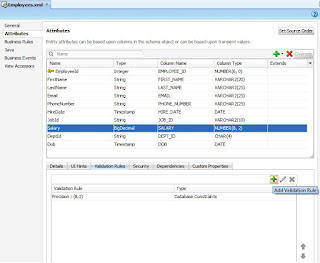
We can also define the field level validation at Entity Object Level. The purpose of validation is to validate data before sent to the database. Declarative validation involves following steps:- 1) Add validation 2) Define Validation 3) Set Error Message In this post we will continue the previous post example and perform validation on Salary Field. Open the employee entity from model.eo package. From attribute select Salary field, open the Validation Rule tab and click plus sign to Add the Validation.

Create Entity Object for Oracle ADF Components Layer in Application

Image
Lets look how we accutaly built Oracle ADF Components layer for our application. The first step is usually creating Entity Objects and this involves following steps. 1) Mapping to database tables 2) Choosing specific attributes 3) Set attribute properties Start Oracle JDeveloper, Click on New Application and from Categories select Application and from Item select Fusion Web Application (ADF)

Oracle ADF Business Components

Oracle ADF Business Components is part of the Oracle ADF framework that is responsible for simplifying the way that we build  Java EE based business services that interact with database it focus on delivering familiar development approach for developers who are comming from the 4 Generation Lanugage tools such as Oracle Forms, Powerbuilder or Visiual Basic and its provide very declarative approach to creating those business services and relational databases. In funcianility Oracle ADF bussiness component is responsible for simplifing the way that we access the data. It also simplifies the way that we write business logic on top of this data. It uses SQL is the way to define the views of the data that we getting. Its separate actual data views from business logic and perform validation in our application. It is also easy to customize it. ADF Business components consist of three layers 1) Entitiy Objects and Associations 2) View Objects and View ...

Call Oracle Stored Procedure using JDBC CallableStatement

Calling stored procedure is same as calling stored function as mentioned in previous post. In this example we will perform INSERT, UPDATE, DELETE on Account table. Code snippets to show you how to call a Oracle stored procedure via JDBC   CallableStatement , and how to pass IN parameters from Java to stored procedure. 1) Stored Procedure A stored procedure in Oracle database. Later, calls it via JDBC. create or replace procedure spAccount(p_acode number,p_aname varchar, p_obalance number,p_descflag varchar) IS begin --INSERTING METHOD IF p_descflag = 'I' THEN insert into account values (p_acode,p_aname,p_obalance); END IF; --UPDATING METHOD IF p_descflag = 'U' THEN update account aa set aa.acct_name = p_aname, aa.obalance = p_obalance where aa.acct_code = p_acode; END IF; --UPDATING METHOD IF p_descflag = 'D' THEN delete from account aa where aa.acct_code = p_acode; END IF; commit; end spAccount; ...

How to create a JDBC Resource using JDBC Connection Pool

Image
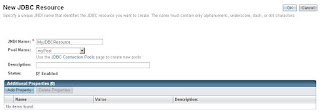
In the previous post I have created an Oracle JDBC Connection Pool using Glassfish 3.1 and in this post I will show you how to add JDBC Connection Pool into JDBC Resource. 1) On the left pane, click on Resources → JDBC → JDBC Resources 2) Click on the “New” button to add a new JDBC resource. In the resulting form, type in MyJDBCResource for JNDI Name. For the Pool Name, select myPool. Leave the rest as default and click OK. 3) You should see that your resource has created. Now your JDBC Resource is ready to use into your web application.

Difference between Oracle PL/SQL programming and Java Programming Language

Oracle PL/SQL JAVA Variable declaration T1 Number (8,2); T2 Number (5) := 5; T3 Varchar2(23); T4 Date; T5 Char; Variable declaration String T1; int T2; double T3; Date T4 = new Date(); char T5; if condition in PL/SQL IF (condition) THEN statement; statement; ELSE statement; statement; END IF; if condition in Java if (condition){ statement; statement; }else { statement; statement; } Exception handling BEGIN statement; statement; statement; EXCEPTION WHEN (exception) THEN statement; statement; END; Exception handling try{ statement; statement; } catch (Exception ex){ statement; } finally { statement; } For Loop FOR i IN [REVERS] low..upper statement; statement; END LOOP; For Loop for (int; condition; inc){ statement; statement; } While Loop WHILE (condition) LOOP statement; statement; END LOOP; While Loop while (condition){ statement; statement; }

List of Data Types in Java Language

There are eight basic data types for the storage of integers, floating-point numbers, characters, and boolean values. These often are called primitive type because they are built in parts of the java language rather than objects, which makes them more efficient use. Another type of number that can be stored is a floating-point number, which has the type float or double. Type Size byte 8 bits short 16 bits int 32 bits long 64 bits

List of Comparison Operators in Java Language

Java has several operators for making comparisons among variables. Operator Meaning Example == Equal x==3 != Not Equal x!=3 < Less than x<3 > Greater than x>3 <= Less than or equal to x <= 3 >= Greater than or equal to x >= 3

Moving from Oracle Developer Suite to Oracle ADF

Image
Hi, I am Oracle Developer and working in Oracle Forms, Reports, SQL and PL/SQL. Now i am starting to learn JAVA Programming and Oracle ADF because Oracle announced that they will stop the support of Oracle Developer Suite in 2013 and Oracle ADF will replace Oracle Developer Suite in future. In the upcoming posts i will share my learning of Java Programming and Oracle ADF.

List of Java Language Reserved Keywords

Here is a list of keywords in the java language. These words are reserved you cannot use any of these words as names in your programs. abstract continue for new switch boolean default package synchronized break do if private this double implements protected throw byte else import public throws case enum assert instanceof return transient catch extends int short try char final interface static void class finally long strictfp volatile float native super while

Create Filter or Criteria List of Values (LOV) in Oracle ADF

Image
In this post i will show you how to create LOV with View Criteria. Do the following steps:- 1) Create View Object 2) Add Bind Variables to Views 3) Create View Criteria 4) Finally Create LOV This post the enhancement of previous post and in this post we will create LOV on Manager ID field. We are going to add two business rules on Manager ID LOV:- 1) Manager cannot manage themselves i.e ( EmployeeId <> CurrentEmployeeId ) 2) Employee can be manage by other employees in the same department or in Executive Department which ID is 1. ( DepartmentId = 1 OR (DepartmentId = CurrentDepartmentId) ) Creating View Object Right click on adf.demo.modle.quries package and select New View Object

Create List of Values - LOV in Oracle ADF

Image
In this post i will continue to enhance my previous post's Employee Form and create my first List of Values (LOV) in Oracle ADF Form. Creation of LOV in ADF is as simple as in Oracle Forms. In this post i am going to create LOV for Department and Job entities. Do the following steps to create LOV in ADF. 1) Add Departments and Jobs Entities 2) Add View Objects for Departments and Jobs LOVs 3) Create LOVs 4) Finally Link LOVs to JSF Page Right click on adf.demo.model.view in Model project and choose Re-factor than Rename the  adf.demo.model.view to adf.demo.mode.queries for good naming convention. Adding Departments and Jobs Entities Right clicking on adf.demo.model.entities package in Model project and choose New Entity Object to Add Departments Entity.

Create Simple ADF Form using Oracle JDeveloper 11g

Image
In this post i will show you how to create simple ADF Form using Oracle JDeveloper 11g. I have create simple employee form based on employee table i.e. created in database. Using following steps i have create the form. 1) Create Application and Entity Objects 2) Create View Objects based on entities 3) Linking View Objects with Application Modules 4) Finally Create JSF Page Pre-requisites 1) Oracle JDeveloper 11g 2) Employee Table in Oracle Database Create Application and Entity Objects   Open JDeveloper and chose default role.

My First Form in Oracle ADF

Image
Given Below Screen Shoot is my first ADF Form. I have create this Form Using Oracle JDeveloper 11g and it very exciting to work in Oracle Fusion Middleware Tool. In the next post i will show you how to create simple form in Oracle JDeveloper 11g. I am beginner in JDeveloper 11g and still exploring this tool.