Posts

Showing posts with the label Java

How to Run Oracle MapViewer Quickstart kit 11g ps5 on Windows 7

Image
Following are the configuration to run Oracle Fusion Middleware MapViewer QuickStart kit 11g ps5 (11.1.1.6) successfully on windows 7. MapViewer is a component of Oracle Application Server.It provides powerful geospatial data visualization services. Software Requirements 1) Download Oracle Java Development Kit (JDK 7) 2) Download the MapViewer QuickStart Kit Installation and Configurations  1) Install JDK in your desire location. I am installing it on under D:\OPT\ 2) Unzip MapViewer (mv11ps5_quickstart). In my case i am unziping it under D:\OPT\ (this will create a new directory called mapviewer11p5_quickstart).
How to take Backup and Restore a Domain of Oracle GlassFish Application Server

Image
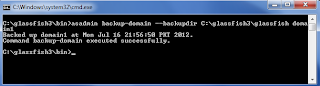
Backup Domain backup-domain  subcommand is used to take backup of domain. Before start the backup process, ensure that domain is stopped and then execute the following command. The  backup-domain  command operates only when the domain is stopped or suspended. # asadmin backup-domain --backupdir [directory patch] domainname --backupdir  switch is used to specify a directory in which to store the backup.

How to Deploy and Undeploy an Application in Oracle GlassFish Application Server

The easiest way of deploying an application through the command line is by using the following command: # asadmin deploy [ path of file ]/webapp1.war Access the webapp1  application by typing the following URL in your browser:

How to Delete Domain in Oracle GlassFish Application Server

Image
Deleting a domain is very simple in Oracle GlassFish Application Server. It can be accomplished by issuing the following command in the command line: # asadmin delete-domain domainname

How to Configure Multiple Domains in Oracle GlassFish Application Server

Image
If we want several domains to execute concurrently on the same server, then ports must be chosen carefully, as specifying the same ports for different services or even the same service across domains will prevent one of the domains form working properly. So to avoid port conflict you have to assign different port numbers in different domains for each purpose. The easy way of doing  this is using portbase option in create-domain command. Given below is the create domain command with portbase option. # asadmin create-domain --portbase [port number] domainname

List of Services for the domain in Oracle GlassFish Application Server

The default posts for the default domain are listed in the following table: Services Port Admin 4848 HTTP 8080 Java Messaging System (JMS) 7676       Internet Inter-ORB Protocal (IIOP) 3700 Secure HTTP (HTTPS) 8181 Secure IIOP 3820 Mutual Authorization IIOP 3920 Java Management Extensions (JMX) Administration 8686

How to Stop Oracle GlassFish Application Server Domain

Image
A domain that is executing can be stopped by issuing the following command: # asadmin stop-domain domainname

How to Start Oracle GlassFish Application Server Domain

Image
To start GlassFish, change the directory to [glassfish installation directory]/glassfishv3/bin on command prompt and execute the following command: # asadmin start-domain domainname I have configured domain1 as domain name and in my case above command change to:

How to create domains in Oracle GlassFish Application Server

Image
To create domain in GlassFish Server, open command prompt and change the directory to [glassfish installation directory]/glassfishv3/bin and execute the following command. The asadmin batch file is located in BIN folder that's way we change the directory location in command prompt. # asadmin create-domain domainname Change the domainname on your choice. Here I am creating a new domain called domain1 as shown below:

How to Perform Validation through Method in Oracle ADF

Image
In this post we will perform validation through Method in Oracle ADF and for this purpose will continue the previous post example. In this example we will perform validation on Employee's First Name field and we will restrict the data entry operator to do not leave the first name field empty. First we will generate and configure Java implementation class for Employee Entity Object. Double click on Employee Entity from model.eo package and Open Java tab. From the Java Classes click on yellow pencil button. From the newly opened window click to generate entity object class and also click to include Accessors. 

Perform Field Level Validation in Oracle ADF

Image
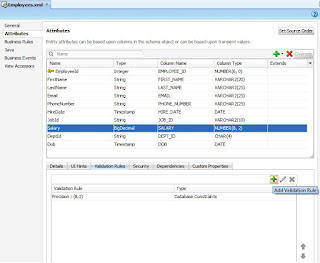
We can also define the field level validation at Entity Object Level. The purpose of validation is to validate data before sent to the database. Declarative validation involves following steps:- 1) Add validation 2) Define Validation 3) Set Error Message In this post we will continue the previous post example and perform validation on Salary Field. Open the employee entity from model.eo package. From attribute select Salary field, open the Validation Rule tab and click plus sign to Add the Validation.

Call Oracle Stored Procedure using JDBC CallableStatement

Calling stored procedure is same as calling stored function as mentioned in previous post. In this example we will perform INSERT, UPDATE, DELETE on Account table. Code snippets to show you how to call a Oracle stored procedure via JDBC   CallableStatement , and how to pass IN parameters from Java to stored procedure. 1) Stored Procedure A stored procedure in Oracle database. Later, calls it via JDBC. create or replace procedure spAccount(p_acode number,p_aname varchar, p_obalance number,p_descflag varchar) IS begin --INSERTING METHOD IF p_descflag = 'I' THEN insert into account values (p_acode,p_aname,p_obalance); END IF; --UPDATING METHOD IF p_descflag = 'U' THEN update account aa set aa.acct_name = p_aname, aa.obalance = p_obalance where aa.acct_code = p_acode; END IF; --UPDATING METHOD IF p_descflag = 'D' THEN delete from account aa where aa.acct_code = p_acode; END IF; commit; end spAccount; ...

Call Oracle Stored Function using CallableStatement through Oracle JDBC Pool Recource

The Oracle PL/SQL language allows you to write functions and procedure to centralize the business logic and store the code in the database. This business logic may be call in many different ways including from a Glassfish Server's JDBC Pool Connection Resource. There are five steps involved in calling a PL/SQL Function from within a application: Create and prepare a JDBC CallableStatement object that contains a call to your PL/SQL function. Register the output parameter for your PL/SQL function. Provide all of the required parameter values to your PL/SQL function. Call the execute() method for your CallableStatement object, which then performs the call to your PL/SQL procedure. Read the returned value from your PL/SQL function.

Retrive Records through PreparedStatement using Oracle JDBC Pool Resource

Image
In this post i will show you to how to select data from database through PreparedStatement using Oracle JDBC Pool Resource. In this example we are selecting all records from Users table and using WHILE LOOP shows all records into browser. 1) Create JSP page using Netbean IDE. 2) Add following classes in your JSP page. <%@page import="java.sql.ResultSet"%> <%@page import="java.sql.PreparedStatement"% > <%@page import="java.sql.SQLException"%& > <%@page import="java.sql.Connection"% > <%@page import="javax.sql.DataSource"% > <%@page import="javax.naming.InitialContext"%> 3) Add the following code in body tag. This code contain JDBC Pool Resource connection, plain SQL Statement and PreparedStatement. <% InitialContext ctx = new InitialContext(); DataSource ODS = (DataSource) ctx.lookup("jdbc/__oracon"); Connection CN = ODS.getConnection(); if (CN == null) { throw new SQLExcepti...

How to use JDBC Connection Pool Resource in Java Application

Image
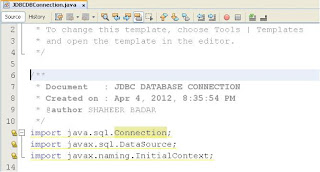
In the previous post we created a JDBC Pool Resource and now in this post i will show you that how to use JDBC connection pool resource your Java Application. 1) Import following Classes in your application. import java.sql.Connection; import javax.sql.DataSource; import javax.naming.InitialContext; 2) Create a JDBCconnection Class as mentioned public class JDBCconnection(){ private DataSource ODS; private Connection CN; public JDBCconnection(){ try { InitialContext ctx = new InitialContext(); /*jdbc/__oracon is a pooled resource name*/ ODS = (javax.sql.DataSource) ctx.lookup("jdbc/__oracon"); CN = ODS.getConnection(); if (CN== null){ System.out.println("Error occur while establishing connection"); } } catch (Exception e){ System.out.println("Oops! " + e.getMessage()); } } } Now using the Connection CN you can call both PreparedStatement Or CallableStatement to write SQL statement directly in your code or call Stored Function, Procedures etc.

How to create a JDBC Resource using JDBC Connection Pool

Image
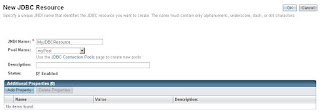
In the previous post I have created an Oracle JDBC Connection Pool using Glassfish 3.1 and in this post I will show you how to add JDBC Connection Pool into JDBC Resource. 1) On the left pane, click on Resources → JDBC → JDBC Resources 2) Click on the “New” button to add a new JDBC resource. In the resulting form, type in MyJDBCResource for JNDI Name. For the Pool Name, select myPool. Leave the rest as default and click OK. 3) You should see that your resource has created. Now your JDBC Resource is ready to use into your web application.

Difference between Oracle PL/SQL programming and Java Programming Language

Oracle PL/SQL JAVA Variable declaration T1 Number (8,2); T2 Number (5) := 5; T3 Varchar2(23); T4 Date; T5 Char; Variable declaration String T1; int T2; double T3; Date T4 = new Date(); char T5; if condition in PL/SQL IF (condition) THEN statement; statement; ELSE statement; statement; END IF; if condition in Java if (condition){ statement; statement; }else { statement; statement; } Exception handling BEGIN statement; statement; statement; EXCEPTION WHEN (exception) THEN statement; statement; END; Exception handling try{ statement; statement; } catch (Exception ex){ statement; } finally { statement; } For Loop FOR i IN [REVERS] low..upper statement; statement; END LOOP; For Loop for (int; condition; inc){ statement; statement; } While Loop WHILE (condition) LOOP statement; statement; END LOOP; While Loop while (condition){ statement; statement; }

List of Data Types in Java Language

There are eight basic data types for the storage of integers, floating-point numbers, characters, and boolean values. These often are called primitive type because they are built in parts of the java language rather than objects, which makes them more efficient use. Another type of number that can be stored is a floating-point number, which has the type float or double. Type Size byte 8 bits short 16 bits int 32 bits long 64 bits

List of Comparison Operators in Java Language

Java has several operators for making comparisons among variables. Operator Meaning Example == Equal x==3 != Not Equal x!=3 < Less than x<3 > Greater than x>3 <= Less than or equal to x <= 3 >= Greater than or equal to x >= 3

Moving from Oracle Developer Suite to Oracle ADF

Image
Hi, I am Oracle Developer and working in Oracle Forms, Reports, SQL and PL/SQL. Now i am starting to learn JAVA Programming and Oracle ADF because Oracle announced that they will stop the support of Oracle Developer Suite in 2013 and Oracle ADF will replace Oracle Developer Suite in future. In the upcoming posts i will share my learning of Java Programming and Oracle ADF.