Posts

Showing posts with the label Weblogic

Oracle SOA Suite Clustered Environment on Oracle Enterprise Linux 6.4
Image
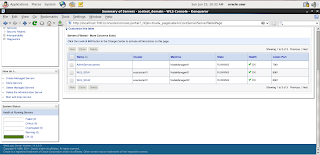
Recently, I have successfully prepared Oracle SOA clustered environment on Oracle Enterprise Linux 6.4 in production mode. This clustered environment includes Admin Server which is running on port 7001 and two SOA Managed Servers. Both SOA clustered Managed Servers are running on same port i.e. 8001. Node Managers are also configured for all domains. Summary of Servers in Weblogic console

Unable to find suitable outbound binding Outbound BPEL Process deployment Issue in SOA

Solution:-   In Jdeveloper open the source tab of BEPL process, search binding.jca entry in the composite.xml and remove the "ns1:" qualification on the operation and redeploying. For example: From: <binding.jca config="BAPI_COMPANYCODE_GETDETAIL_invoke_3P.jca" operation="ns1:BAPI_COMPANYCODE_GETDETAIL"/> To: <binding.jca config="BAPI_COMPANYCODE_GETDETAIL_invoke_3P.jca" operation="BAPI_COMPANYCODE_GETDETAIL"/> For further detail see my OTN forum post:- https://forums.oracle.com/thread/2546166

Oracle Fusion Middleware Environment on Solaris 11

Image
Recently I prepared Oracle Fusion Middleware 11g environment for SOA Server Suite on Oracle Solaris11.1 (x86-64bit). This includes the installation and configuration of following Oracle products:- 1) Oracle Database 11gR2. 2) Repository creation for SOA Suite. 3) Oracle Weblogic Server 11g. 4) Oracle SOA Suite 11g. 5) Domain creation and configuration for Admin Server and SOA Server.

How to Create a Content Management Site in WebCenter Sites 11g

Image
1) Start Weblogic Server 2) Open browser and enter the following URL http://localhost:7001/servlet Log in as the fwadmin user.

Verify Oracle WebCenter Sites 11g Installation on Windows 7

Image
After the successfull installation of Oracle WebCenter Sites on Windows 7 with Weblogic Server now in this post we will verify the installation. To access the WebCenter Sites interfaces Open browser and enter the following URL http://localhost:7001/servlet The WebCenter Sites login form is displayed.

Oracle WebCenter Sites 11g Installation on Windows 7 with Weblogic Server

Image
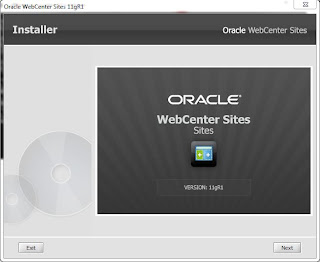
After completing prerequsities steps for WebCenter Sites installation on windows 7, we are in the position to start the install of WebCenter Sites using the provided installer. Extract the WebCenter Sites installer archive into a directory. Go to the following path and run csInstall.bat file <directory>\sites\WebCenterSites\WCS_Sites_11.1.1.6.0\ContentServer run csInstall.bat file WebCenter Sites installer screen will appear from that click next.

Create and Configure a Data Source in Weblogic Server for WebCenter Sites

Image
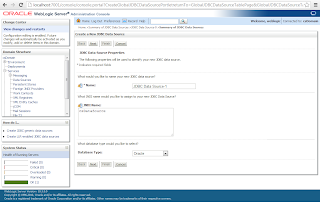
In this post we will craete and configure a Data Source in Weblogic Server for Oracle WebCenter installation. I assumes that the admin server has already start. Create the Data Source Log in to the WebLogic Server Administration Console. 1) In the tree at the left expand Services. 2) Click Data Sources. 3) Click New and select Generic Data Source 4. In the “Create a New JDBC Data Source” screen, enter the following values:     a. A name for the data source.     b. csDataSource for the JNDI name.

Configure Weblogic Domain for WebCenter Sites 11g

Image
In this post we will configure and set some setting in Weblogic domain (csDomain) before we start the installation of Oracle WebCenter Sites on Windows 7. Setting Hostname Verification for AdminServer 1) Start Weblogic Server, after the admin server has started, open a web browser and log in to the “WebLogic Server Administration Console” at: http://localhost:7001/console 2) In the tree at the left of the screen, expand Environment. 3) Click Servers. 4) Click on the AdminServer. 5) Click the Configuration tab. 6) Click SSL. 7) Click Advanced. 8) Click Save

Create a domain in Weblogic Server 11g for Oracle WebCenter Sites 11g

Image
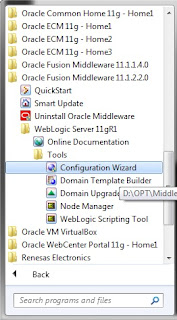
In this post I am going to create a domain in Weblogic Server 11g for Oracle WebCenter Sites 11g installation on Windows 7. Run Configuration Wizard by opening Start Menu --> All Programs --> Oracle Fusion Middleware 11.1.2.2.0 --> WebLogic Server 11gR1 --> Tools

Create and configure Oracle Database 11g for WebCenter Sites 11g installation on Windows 7

Image
In this post we create and configure Oracle database 11g for WebCenter Sites installation on Windows 7. Create Oracle Database 11g Launch the Oracle Database Configuration Assistant from start menu --> All Program --> Configuration and Migration Tools In the Operations screen, select Create a Database and click Next

Prerequisites for Oracle WebCenter Sites 11g R1 (11.1.1.6.0) installation on Windows 7

Following are the pre-requisites for Oracle WebCenter Sites 11g R1 (11.1.1.6.0) installation on Windows 7 OS with Oracle Database.   Pre-requisites for Oracle WebCenter Sites 11g R1 (11.1.1.6.0) 1) Oracle JDK 1.7.0_07+ 2) Oracle Database 11.1.0.6+ 3) WebLogic Server 10.3.5+ and 10.3.6 ( Note: Fusion Middleware 11 g products are not supported on WebLogic Server 12.1.1)

How to verify WebCenter Portal 11gR1 (11.1.1.6.0) Installation

Image
Each domain has an adminServer which need to be started before we can start the managed servers and verfity the WebCenter Portal installation. This can be done by executing the startWebLogic.cmd command in following directory: <middleware home>\user_projects\domains\webcenter_domain\bin The admin server will now start. This can take a few minutes depending on your system.

How to Create a Weblogic Domain for Oracle Portal 11g R1 (11.1.1.6.0)

Image
In order to create a domain for Oracle Portal 11gR1, we need to run the configuration tool from Webcenter. This can be found in the commons directory of the WebCenter: [installation directory]\Middleware\Oracle_WC\common\bin Execute config.exe   From the Fusion Middleware Configuration Wizard chose Create a new Weblogic domain    

How to Install Oracle Webcenter Portal 11gR1 (11.1.1.6.0) on Windows 7

Image
In the previous post we have created required schemas for Oracle Webcenter Portal on Oracle Database 11gR2 through Repository Creation Utility (RCU). Now in this post we will continue the installation of Oracle Webcenter Portal 11gR1 on Windows 7 environment. What is Oracle Webcenter Portal 11g According to Oracle: WebCenter Portal is the modern user experience platform for the enterprise and the web. It consolidates the best user experience capabilities from a significant portfolio of leading portal products and related technologies to deliver a modern user experience for the enterprise.

Create a New Domain in Oracle Weblogic Server for Oracle Webcenter Contant 11g

Image
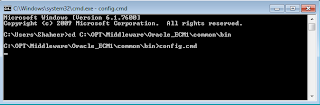
In this post we will see how to create a weblogic domain, it is a very important step that finaliz your configuration for Webcenter Contant Server run as a manage server in Weblogic. Here how we do it:- Domain Creation in Weblogic Server In the windows environment go to the [Middleware installation Path\Oracle_ECM1\common\bin]. In my case this is C:\OPT\Middleware\Oracle_ECM1\common\bin

Create required Schemas for Oracle WebCenter Portal through RCU

Image
Repository Creation Utility is tool to create schema and load repository in existing database for Fusion Middleware components. Repository Creation Utility enables you to create and drop component schemas that are the part of Oracle fusion middleware.   Prerequisites for RCU You need to install the database version 10.2.0.4.0 in 10g or version equal to higher than 11.1.0.7.0 with the database character set AL32UTF8.   Download Link of RCU   You can download Repository Creation Utility 11.1.1.6.0 for Windows from the given below link   http://www.oracle.com/technetwork/middleware/downloads/fmw-11-download-092893.html

List of required Softwares for Oracle WebCenter Portal Installation

Following are the prerequites and recommended Softwares for Oracle WebCenter Portal 11g installation:-   1) Oracle Database 11 g Release 2 (11.2.0.1) 2) Oracle WebLogic Server 11 g R1 (10.3.6) 3) Repository Creation Utility (RCU) 11.1.1.6.0 4) Oracle WebCenter Content 11 g R1 (UCM) 11.1.1.6.0 5) Oracle WebCenter Portal 11 g ( 11.1.1.6.0)